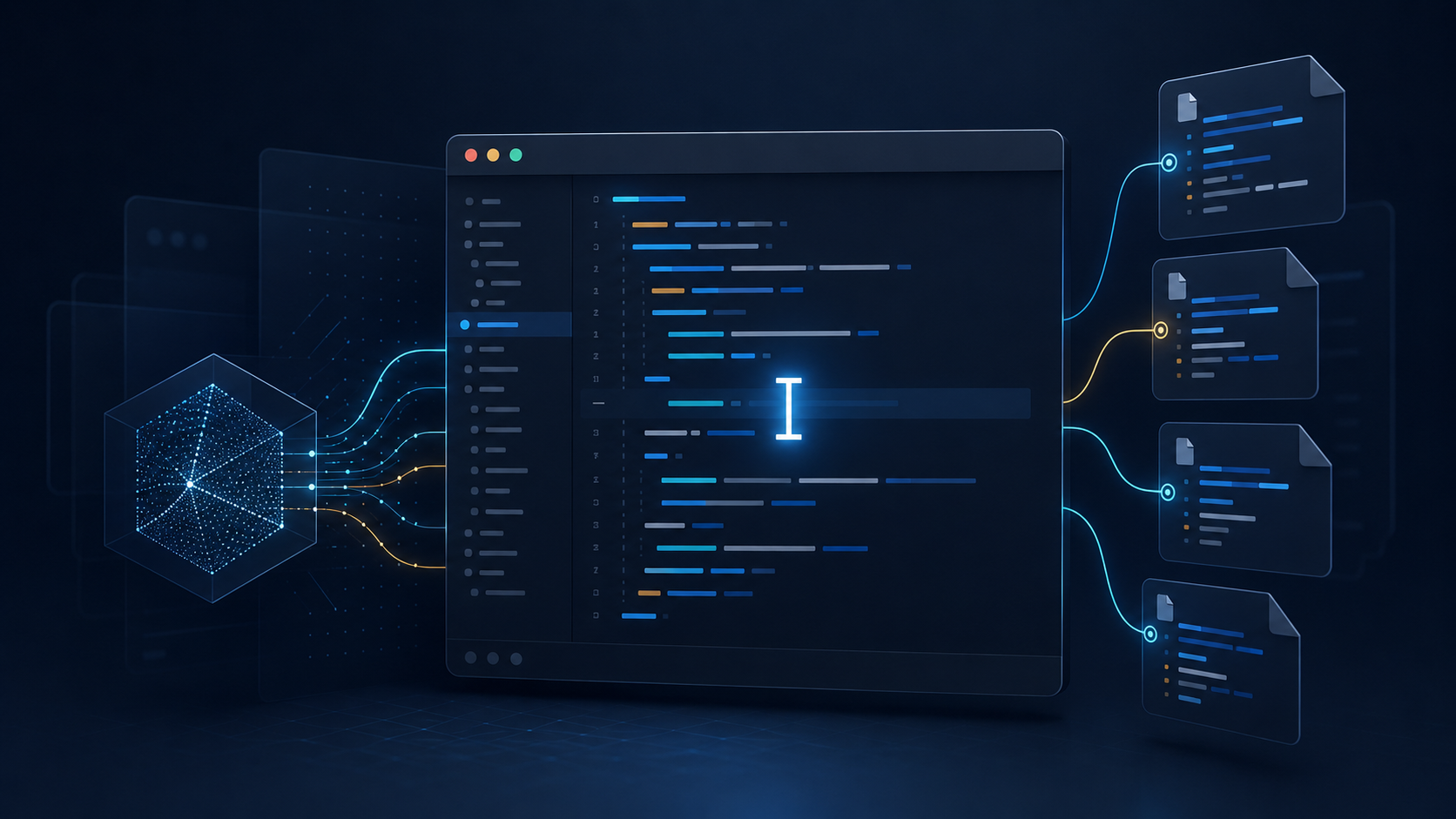
AI coding assistants have evolved rapidly, but Cursor has taken a different approach. Instead of acting as a browser-based chatbot or a simple autocomplete tool, Cursor is built as an AI-first code editor designed to help developers write, understand, edit, and maintain entire codebases.
This Cursor Review is designed to help you decide whether the editor fits your needs, whether you’re building personal projects, maintaining enterprise software, or learning to code.
In this Cursor Review, we’ll examine its features, pricing, strengths, weaknesses, ideal users, and how it compares with leading alternatives to help you decide whether it’s the right AI coding assistant for your workflow.
Cursor Review: Quick Verdict
Beforemark Rating: ★★★★★ (4.8/5)
Best For
Developers who want an AI-native code editor capable of understanding large codebases, generating code, refactoring projects, fixing bugs, and accelerating everyday development tasks.
Strengths
- Excellent codebase awareness
- Fast AI-powered editing
- Multiple leading AI models
- Powerful AI agent workflows
- Familiar Visual Studio Code experience
- Excellent developer productivity
Weaknesses
- Primarily designed for software development
- Learning curve for beginners
- Advanced AI usage may require a paid subscription
Bottom Line
Cursor is one of the most capable AI coding tools available today. Rather than simply answering programming questions, it integrates AI directly into the development environment, allowing developers to write, edit, debug, and refactor code with significantly less manual effort.
For professional developers and serious hobbyists, it is one of the strongest AI editor choices currently available.
What Is Cursor?
Cursor is an AI-powered code editor built specifically for modern software development.
Unlike general-purpose AI chatbots, Cursor combines a familiar coding environment with advanced AI capabilities to help developers work more efficiently without constantly switching between tools.
Because it is based on the Visual Studio Code ecosystem, many developers can begin using Cursor with minimal adjustment while gaining AI-powered features throughout the editing experience.
Cursor can assist with tasks such as:
- Writing new code
- Explaining unfamiliar code
- Refactoring existing projects
- Finding and fixing bugs
- Generating documentation
- Navigating large repositories
- Automating repetitive development tasks
Its biggest advantage is understanding your project as a whole rather than only responding to isolated prompts.
Key Features
AI-Native Code Editing
Cursor integrates AI directly into the editing experience instead of treating AI as a separate chatbot.
Developers can modify code using natural language instructions, making common editing tasks significantly faster.
Examples include:
- Rename variables
- Refactor functions
- Update APIs
- Convert code styles
- Rewrite logic
- Generate new components
without manually editing every line.
Codebase Awareness
One of Cursor’s defining capabilities is its ability to understand an entire project rather than only the currently open file.
This broader context allows the AI to generate recommendations that better align with the overall architecture of your application.
For larger projects, this dramatically improves the relevance and accuracy of AI-generated code.
Intelligent Chat
Cursor includes an integrated AI chat designed specifically for programming.
Developers can ask questions such as:
- “Why is this function failing?”
- “Explain this class.”
- “Where is this API used?”
- “Suggest a cleaner implementation.”
- “How should this be optimized?”
Because the assistant has access to project context, its responses are often more useful than those from general-purpose AI tools.
User Experience
One of Cursor’s greatest strengths is its familiar interface.
Since it is built on the Visual Studio Code ecosystem, developers transitioning from VS Code will recognize the layout, keyboard shortcuts, extensions, and general workflow almost immediately.
Rather than learning an entirely new editor, users can focus on integrating AI into their existing development habits.
Natural language editing feels fast and intuitive, allowing developers to describe the change they want instead of manually implementing every modification.
For experienced programmers, this creates a smoother workflow with fewer interruptions and less repetitive work.
Performance
Cursor performs exceptionally well for everyday development tasks.
Simple code generation is nearly instantaneous, while more complex requests involving multiple files or larger codebases naturally require additional processing time.
The editor remains responsive during normal use, and AI features generally integrate smoothly into the development workflow.
Performance depends partly on the selected AI model and the complexity of the project, but overall Cursor delivers one of the fastest AI-assisted coding experiences currently available.
Pricing
Cursor offers a free Hobby plan with limited Agent requests and access to Composer. Individual Pro starts at $20 per month, while Teams Standard starts at $40 per user per month. Higher individual and team tiers are also available, and Enterprise pricing is customized.
Plan limits and included model usage can change, so verify the latest details on Cursor’s official pricing page before subscribing.
Pros
- Excellent AI-assisted coding experience
- Understands entire codebases instead of individual files
- Familiar Visual Studio Code interface
- Supports multiple leading AI models
- Powerful natural language editing
- Fast code generation and refactoring
- Strong developer productivity improvements
- Excellent extension compatibility
- Frequently updated with new AI capabilities
Cons
- Primarily useful for software developers
- Beginners may face a learning curve
- Heavy AI usage may require a paid subscription
- AI suggestions should still be reviewed before production deployment
Who Should Use Cursor?
Cursor is an excellent choice for:
- Professional software developers
- Freelance developers
- Full-stack engineers
- Front-end developers
- Back-end developers
- Startup teams
- Technical founders
- Computer science students
- Developers working with large repositories
- Anyone looking to increase coding productivity using AI
Who Should Look Elsewhere?
Cursor may not be the best option if you:
- Rarely write code
- Primarily need a general AI chatbot
- Want an AI writing assistant instead of a coding assistant
- Need specialized no-code automation tools
- Prefer a traditional editor without AI assistance
Cursor vs. Other AI Coding Tools
Need a ranked comparison? See Beforemark’s Best AI Coding Tools for workflow-based recommendations across editors, agents, IDE assistants, and command-line tools.
Cursor vs. ChatGPT
While both Cursor and ChatGPT can generate code, they serve different purposes.
Cursor is designed as an AI-first development environment that works directly inside your code editor. It understands your project structure, edits multiple files, and helps you write, refactor, and debug code without leaving your development workflow.
ChatGPT, on the other hand, is a general-purpose AI assistant that excels at explaining concepts, brainstorming solutions, writing documentation, and answering programming questions. While it can generate high-quality code, it lacks the same level of direct integration with your local codebase.
Choose Cursor if you want AI integrated into your daily coding workflow.
Choose ChatGPT if you need a versatile AI assistant for coding, writing, research, and general problem-solving.
Cursor vs. GitHub Copilot
Cursor and GitHub Copilot are two of the most popular AI tools for developers, but they take different approaches.
GitHub Copilot focuses primarily on intelligent code completion and inline suggestions within supported editors. It is excellent for accelerating routine coding tasks and reducing repetitive typing.
Cursor expands beyond autocomplete by providing AI-powered editing, project-wide understanding, conversational code assistance, and multi-file modifications. Rather than simply predicting the next line of code, Cursor acts more like an AI development partner capable of making larger architectural changes.
Developers who want a more comprehensive AI-powered coding experience will generally find Cursor offers greater flexibility.
Cursor vs. Claude
Claude has become well known for producing thoughtful explanations, handling long contexts, and assisting with software architecture discussions.
Cursor complements these strengths by embedding AI directly into the coding environment. Instead of copying code between applications, developers can work within a dedicated editor that streamlines implementation, debugging, and refactoring.
Many developers use both tools together: Claude for planning and reasoning, and Cursor for hands-on development.
Cursor vs. Visual Studio Code
Visual Studio Code remains one of the world’s most popular code editors.
Cursor builds upon a familiar VS Code foundation while adding extensive AI capabilities throughout the development experience.
For developers who already rely on VS Code, transitioning to Cursor is typically straightforward because much of the interface, extension ecosystem, and workflow remains familiar.
Those who prefer a traditional editor without integrated AI may choose to remain with VS Code, while developers seeking greater productivity gains may benefit from Cursor’s AI-native approach.
Common Use Cases
Cursor is commonly used for:
- Building new applications
- Refactoring legacy code
- Debugging software
- Learning unfamiliar programming languages
- Exploring large codebases
- Creating prototypes quickly
- Writing tests
- Generating documentation
- Modernizing existing projects
- Accelerating day-to-day software development
Its flexibility makes it useful for both individual developers and collaborative engineering teams.
Ease of Getting Started
Installing Cursor is straightforward, and most developers can begin working within minutes.
After downloading the editor, users can import many of their existing Visual Studio Code settings, extensions, and preferences, making the transition relatively seamless.
The built-in AI features are easy to discover, and natural language prompts reduce the need to memorize specialized commands.
While mastering advanced workflows takes time, most users can begin seeing productivity improvements almost immediately.
Beforemark’s Take
Cursor represents one of the strongest examples of how AI can meaningfully improve software development without replacing the developer.
Instead of attempting to automate programming entirely, it focuses on reducing repetitive work, improving navigation through complex projects, and making code editing faster and more intuitive.
Its combination of project awareness, conversational AI, and natural language editing makes it a compelling choice for developers who spend significant time writing and maintaining code.
For anyone serious about increasing development productivity, Cursor deserves a place on the shortlist.
Frequently Asked Questions
Is Cursor free?
Yes. Cursor offers a free plan that lets users explore its core AI-powered coding capabilities. Paid plans provide higher usage limits, access to additional premium models and features, and are better suited for developers who rely on AI throughout their daily workflow.
Is Cursor good for beginners?
Yes, particularly for beginners who already have some programming knowledge or are actively learning to code. Cursor can explain code, generate examples, and help troubleshoot errors, making it a valuable learning companion. Complete beginners should still take time to understand the code the AI produces rather than relying on it without review.
Which programming languages does Cursor support?
Cursor supports virtually any programming language that can be edited in Visual Studio Code. Popular languages include:
- Python
- JavaScript
- TypeScript
- Java
- C#
- C++
- Go
- Rust
- PHP
- Ruby
- Swift
- Kotlin
- HTML
- CSS
- SQL
Because it is built on the VS Code ecosystem, support extends to many additional languages through extensions.
Does Cursor replace developers?
No. Cursor is designed to improve developer productivity, not replace software engineers. It helps automate repetitive tasks, generate code, explain unfamiliar sections, and accelerate development, while human developers remain responsible for architecture, testing, security, and final decisions.
Can Cursor work with existing projects?
Yes. One of Cursor’s biggest advantages is its ability to work with existing codebases. It can analyze project structure, explain relationships between files, suggest improvements, and assist with refactoring without requiring you to start a new project.
Alternatives to Cursor
If Cursor isn’t the right fit, consider these alternatives:
Each tool offers a different balance of AI assistance, editor integration, and development workflow.
Security and Privacy
Cursor can interact with source code and project context, so teams working with proprietary, regulated, or sensitive code should review Cursor’s current privacy, security, and data-handling terms before adoption. Use the available privacy controls, keep secrets and credentials out of prompts, and require normal code review and testing for AI-generated changes.
For the latest policies and plan-specific controls, consult Cursor’s official security information.
Final Verdict: Is Cursor Worth It?
Yes—for developers who code regularly, Cursor is one of the strongest AI-native editors available.
Its biggest advantage is not isolated code generation; it is the way project context, multi-file editing, chat, and agent-style assistance work inside a familiar development environment. That combination can save meaningful time on repetitive implementation, debugging, refactoring, and codebase navigation.
The free plan is the sensible starting point for learners and occasional users. Professional developers and teams are more likely to justify a paid plan when the time saved exceeds the subscription cost. Cursor is less compelling for people who rarely code or mainly need a general-purpose AI assistant.
Beforemark Rating: 4.8/5
Try Cursor for Your Own Workflow
Start with Cursor’s free plan and test it on a real, version-controlled project. Evaluate the quality of its edits, the time it saves, and how often you still need to correct its output before deciding whether a paid plan is worthwhile.
Editorial disclosure: Beforemark independently evaluates AI tools. This button uses Cursor’s official website and is not currently an affiliate link. Always verify current pricing and terms before purchasing.